Tutorial · Research edition
OBS Mic Echo or Double Audio? Find the Duplicate Signal Path
Find out whether OBS echo is in your headphones or your recording. Compare original audio examples, trace duplicate capture, and test one route at a time.
Before changing a filter, find out who hears the second voice. If your headphones echo but a saved recording is clean, you have a different problem from a microphone recorded twice. The same word—echo—also gets used for room reflections and two copies arriving almost together.
Start with a short local recording and listen after stopping it. Then change one route, repeat the same test and compare the files. The aim is to identify the path that carries the extra sound while keeping the voice, guest and application audio you actually need.
First, separate the recording from the sound in your headphones
Put on headphones at a low playback level. Note the current scene and settings before touching them; a screenshot or a copy of your profile is useful. Record about 20 seconds: say a short phrase, pause, then make one brief sound in the application whose audio you want to keep. Do not use someone else's copyrighted clip as a test source.
Stop recording. Play that new file with OBS monitoring and other playback paths silenced, so the reference is the file rather than a second live return. If it has several audio tracks, inspect the intended mix and the relevant isolated tracks in an editor. A player selecting one track cannot tell you what is in all the others; our separate-tracks guide covers that handoff.
OBS itself recommends listening back to a test recording before going live. That is the first useful evidence here: a clean file with a delayed voice only in your headphones sends you toward monitoring. An extra copy inside the file sends you toward capture routes and output assignment. If only the live stream has the problem, inspect that output's track; a clean local track is not proof of a clean stream mix.
Use the symptom to choose the next check
- The saved mix is clean; headphones contain a delayed second voice. Next: compare direct input monitoring with the OBS monitoring return. Evidence to look for: the second headphone path disappears when one monitor route is removed; a new file stays correct.
- The saved mix contains a second copy of the mic or app. Next: compare global devices, scene sources and application/desktop capture. Evidence to look for: muting one suspected duplicate removes the copy while the wanted source remains.
- Only the stream is doubled. Next: check the output’s selected mix track and its contributing sources. Evidence to look for: the actual stream mix passes a controlled retest; the recording's other track was a misleading reference.
- A roomy tail remains in a recording made through one verified capture route. Next: investigate acoustic pickup separately. Evidence to look for: the tail is already present in a separately recorded input; duplicate capture has been excluded only for the tested setup.
These findings narrow the search. They do not prove a microphone is faulty, identify every hidden mixer route or establish that an acoustic tail can be repaired. If the voice is single but it does not line up with the picture, use the OBS sync measurement guide instead.
One microphone can enter OBS through two names
Write down the actual device selected in each audio source, not just its display name. A global Mic/Aux device and a scene's Audio Input Capture source can point to the same microphone. OBS explicitly warns about that global/scene overlap. Two different labels in the mixer are not evidence of two different physical inputs.
Test the suspected duplicate locally, away from a live session. Mute one path, record the same phrase, and play it back. If the voice remains and the extra copy disappears, you have a useful before-and-after result. If the voice vanishes, restore the setting and test the other route. Do not remove a source permanently just because its name looks redundant.
After the test identifies the overlap, keep one deliberate capture route. If you choose scene-specific capture, check the corresponding global device; OBS's guidance is to avoid capturing that same device in both places. Then visit every scene you use: fixing the current scene can otherwise leave another scene silent. Also inspect a webcam or capture card if it contributes another microphone or a return of the same program sound.
Check application audio against the whole desktop
On supported Windows systems, an application can arrive through a dedicated application source as well as the global Desktop Audio capture. OBS's application guide describes per-application capture from OBS 28 on Windows 10 version 2004 or later and Windows 11; it also documents audio capture within Game/Window Capture from 30.1. The guide warns against overlapping application capture with global Desktop Audio.
Play a short, recognizable sound in that application and compare the intended routes one at a time. Before choosing application-only capture, list every app the audience must hear, including guest calls and alerts. Losing the second copy is not a successful fix if it also loses the guest. Some apps have documented capture limitations; this article is not a reason to install a virtual cable before you have identified the missing or duplicated route.
On macOS, use the source types documented for your OBS and macOS versions. OBS's current Mac guide describes macOS Audio Capture for OBS 30+ on macOS 13+, and notes that macOS Screen Capture also carries audio. Check whether the same app is included by two active captures. A Windows Desktop Audio walkthrough is not a substitute for inspecting the sources in your Mac setup. Linux source types differ; the shared lesson is to trace the inputs, not copy another OS's device menu.
Monitoring needs an exit that does not come straight back
Draw the route with four boxes: source → OBS mix → monitoring device → anything capturing that device. If the last box returns to the mix, a monitoring signal can become another captured source. If your interface also sends the microphone directly to your headphones, an additional software return can give you two headphone paths even while the saved file contains one voice. Check the interface's own instructions rather than assuming OBS controls that direct path.
Treat monitoring and output as separate choices. The current OBS Mixer guide describes a monitor control for local playback and a mute control for the output. We also inspected the 33.0.1 Advanced Audio source: monitoring is an Enable checkbox connected to its own monitoring-enabled setting. That is source inspection, not a hands-on UI test. Older tutorials showing a three-mode monitoring dropdown may not match your version; confirm the actual controls before following their labels.
Turn off only the unneeded monitoring return for the suspect source and make another local recording. If that clears your headphones, verify that the output is still audible in the file. If the file was doubled, also check whether the monitoring destination was being captured. Simply moving a fader until the echo is quieter leaves the extra route in place.
Our measured example: a duplicate does not always sound like an echo
We generated one eight-second mono PCM reference with three short markers and a longer textured tone segment, then added an exact copy at three known delays. These are signal-sum models, not OBS captures, speech, room simulations or device-calibration files. Listening is optional.
Measured from the delivered 48 kHz, 16-bit mono WAV files. Whole-file RMS includes silence and is not integrated LUFS.
- Dry reference: No added copy; sample peak −24.00 dBFS; whole-file RMS −42.17 dBFS.
- Aligned sum: 0 samples / 0 ms; sample peak −17.98 dBFS; whole-file RMS −36.15 dBFS.
- Short delayed sum: 720 samples / 15 ms; sample peak −21.58 dBFS; whole-file RMS −38.02 dBFS.
- Longer delayed sum: 5,760 samples / 120 ms; sample peak −23.88 dBFS; whole-file RMS −41.71 dBFS.
The aligned output is exactly twice each reference sample: its sample peak rises by 6.02 dB, yet there is no separate event. Applying half gain to this ideal sum reproduces the reference exactly. A louder voice can therefore justify checking for duplication; a 6 dB change alone cannot diagnose it.
In the 120 ms file, inspect the first marker at about 1.000 seconds and its second copy at about 1.120 seconds. The 15 ms file has a much smaller gap. These chosen delays are not universal perceptual thresholds. Files are not loudness matched, and the RMS values include silence: they are not integrated LUFS or perceived-loudness scores.
To repeat the check, import a dry and delayed file at the same timeline start. Convert the track you are inspecting to samples, then compare the marker shapes. At 48 kHz, samples ÷ 48 gives milliseconds. In the aligned file, reduce amplitude by exactly one half to compare it with the dry reference. Do not mistake your editor's display rounding for a measured latency in your own hardware.
Original synthetic demonstration
Compare one signal with two routes
Turn playback volume down first. Synthetic tones and noise bursts; not speech or an OBS recording. The aligned sum is 6.02 dB louder in amplitude than the dry reference by design. These files are not loudness matched.
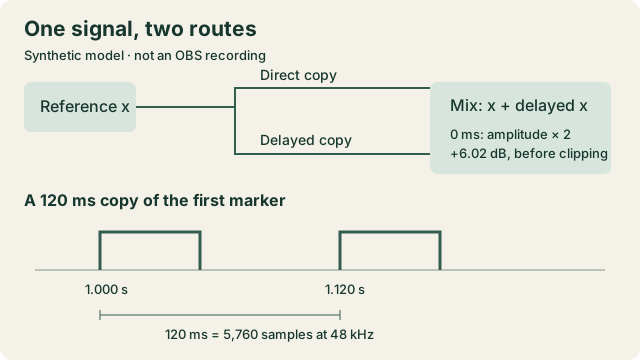
A reference enters a mix directly and through a delayed copy. In the 120 ms example, a marker near 1.000 seconds is followed by its copy near 1.120 seconds. Aligned copies instead add 6.02 dB in amplitude.
Download the four short WAV files for waveform inspection in an editor. Listening is optional; file descriptions and measured values explain the comparison. These models cannot diagnose your capture or monitoring routes.
Dry reference
8 seconds. Mono synthetic markers and textured tones; sample peak -24.00 dBFS. No added copy.
Download echo-dry.wav · WAV (48 kHz, 16-bit PCM) · 8 seconds · 768,044 bytes
File integrity
SHA-256: 7fcc6a25180ae9780a64f0f9b01283bb72764278ee33a9c2e308b3d0891659f8
Two aligned copies
8 seconds. Mono synthetic markers and textured tones; sample peak -17.98 dBFS. Added copy delayed by 0 samples (0 ms).
Download echo-aligned.wav · WAV (48 kHz, 16-bit PCM) · 8 seconds · 768,044 bytes
File integrity
SHA-256: 356e865aef79c8c09029ca7603953baf8bcd047754a32022e239027891f8faf4
Reference plus a 15 ms copy
8 seconds. Mono synthetic markers and textured tones; sample peak -21.58 dBFS. Added copy delayed by 720 samples (15 ms).
Download echo-15ms.wav · WAV (48 kHz, 16-bit PCM) · 8 seconds · 768,044 bytes
File integrity
SHA-256: 443f770fbb7fd25bd9c873c4a54b0e6969c848e6e516b9fd44ad13928f811de6
Reference plus a 120 ms copy
8 seconds. Mono synthetic markers and textured tones; sample peak -23.88 dBFS. Added copy delayed by 5,760 samples (120 ms).
Download echo-120ms.wav · WAV (48 kHz, 16-bit PCM) · 8 seconds · 768,044 bytes
File integrity
SHA-256: 1759c0776cb22b57ebc27271ac891380774daeef6fe923ec9f8f83476e50dc1a
Generated and measured by StudioSignalLab on October 30, 2026. Shipped files are pinned by hash. These examples contain no speech, music or hardware capture. The files model exact signal sums, not an OBS, driver, microphone or room measurement.
Accept the correction only after the wanted mix survives
Repeat the original phrase and application sound with the proposed correction. Listen to the saved mix, inspect the needed isolated tracks, and switch through the scenes you will actually use. If recording and streaming use different mixes, verify the stream path separately in your normal controlled test workflow; do not assume a local recording proves live delivery.
Keep a small record: scene, physical input, OBS source, capture method, monitoring destination, output track, one change made, and before/after filenames. A defensible result reads: ‘Muting the second capture left the microphone and guest in the saved mix; no second copy remained in the tested scenes.’ ‘It sounded better in my headphones’ leaves too much unanswered.
If a roomy tail remains after the tested duplicate routes are excluded, stop changing capture settings and investigate room treatment versus noise removal. If the signal is on one side rather than repeated, use the one-ear channel diagnostic. Keep an existing damaged recording untouched: a duplicate mixed into one file is not guaranteed to be removable by a gate, suppression setting or polarity switch. Our AI audio-cleanup limits guide explains why capture prevention and file repair are different jobs.
Sources and verification
Claims were checked against the following first-party documentation on October 30, 2026. Product capabilities can change; verify current documentation before buying or changing a production system.
- OBS Audio Mixer Guide — local monitoring, output controls and recording check
- OBS Audio Sources — global/scene duplication warning and platform boundaries
- OBS Application Audio Capture Guide — Windows scope and Desktop Audio overlap
- OBS macOS Desktop Audio Capture Guide — native capture source scope
- OBS 33.0.1 Advanced Audio control source — monitoring Enable checkbox, checked October 30
- OBS official download page — 33.0.1 listed October 30, 2026; no installed-interface test
Frequently asked questions
Why do I hear myself twice in OBS but the recording is clean?
You may be hearing two monitoring paths, such as a direct input return and a delayed software return. Confirm with a stopped recording played on its own, then compare monitoring routes. A clean file does not prove every stream track or scene is also clean.
Should I disable Desktop Audio to stop OBS echo?
Only after checking what it captures. On supported Windows setups, application capture and Desktop Audio can include the same sound. Keep one intended route and retest the guest, alerts and other wanted apps; removing a duplicate must not remove audio you need.
Why does double audio sound louder rather than like an echo?
Copies arriving together can add in amplitude rather than make a separate repeat. Our ideal aligned sum doubles each sample and adds 6.02 dB. Real routes need not have identical gain, polarity or timing, so loudness alone cannot identify duplicate capture.
Can I remove OBS echo from a recording I already made?
Keep the original and check for a clean isolated track or independent backup first. Once copies or room reflections are mixed together, recovery depends on the signal and delay and is not guaranteed. Preventing the second capture is more reliable than assuming a cleanup tool can undo it.