Troubleshooting · Research edition
Scarlett Microphone Only in One Ear? Find the Wrong Channel
Separate a one-sided recording from a monitoring problem. Follow the documented OBS and DAW routes, with original mono/stereo listening files.
A microphone in Scarlett Input 1 can become the left side of a stereo recording. That does not mean the microphone needs to be stereo or that the interface is broken. It means you need to find where one input became a left/right pair.
First decide what is one-sided: the saved file, what you hear while recording, or every sound through the headphones. Those observations lead to different checks. The short generated files below help you separate them without recording a new show.
Original synthetic demonstration
Inspect the channels
Turn playback volume down first. Synthetic tones; no Scarlett recording. These files illustrate channel contents and cannot diagnose your hardware.
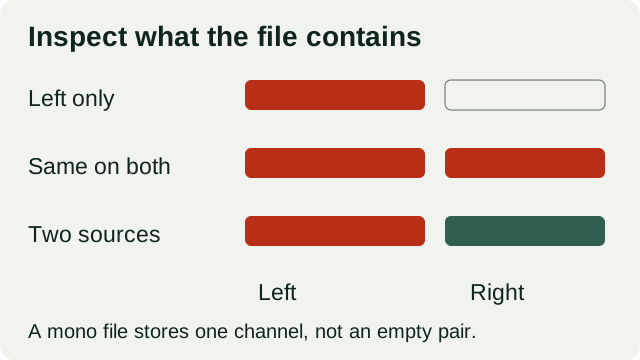
A left-only stereo file has an empty right channel. Identical signals on both sides differ from two independent sources. A mono file stores one channel.
Download the short WAV files to inspect their channels in your editor. Start playback volume down if you choose to listen; the descriptions provide the lesson without listening.
Same tone in both channels
3 seconds. Stereo 440 Hz tone, identical left and right; sample peak −18 dBFS.
Download channel-both.wav · WAV (48 kHz, 16-bit PCM) · 3 seconds · 576,044 bytes
File integrity
SHA-256: 5b48b527e71bdc6933ef67a5f0525733fe0fb8348b72c971d9a77c8c49589887
Tone on the left; silence on the right
3 seconds. Stereo file; only the left channel contains a 440 Hz tone, at −18 dBFS.
Download channel-left.wav · WAV (48 kHz, 16-bit PCM) · 3 seconds · 576,044 bytes
File integrity
SHA-256: 5de0225fd66f52406898359af976b4c32e97ab39b11e3f8c85adcdc68ea38880
One stored channel
3 seconds. Mono 440 Hz tone at −18 dBFS. Your playback system determines how it reaches the outputs.
Download channel-mono.wav · WAV (48 kHz, 16-bit PCM) · 3 seconds · 288,044 bytes
File integrity
SHA-256: c84b7b1beb9af5dca1b6ad286cd0405514c8734738d21f314b2a81fab4f5a428
Two distinct sources
3 seconds. Stereo: 440 Hz left and 660 Hz right, both at −18 dBFS. A stand-in for two independent inputs, not voices.
Download channel-two-inputs.wav · WAV (48 kHz, 16-bit PCM) · 3 seconds · 576,044 bytes
File integrity
SHA-256: 2eff43fd1afc273f1029ce7a3087e621b0220b2748b97e171a615c71a2c6baee
Generated and measured by StudioSignalLab on October 29, 2026. Shipped files are pinned by hash. Measurements can be repeated; different encoders, fonts or builds may produce different bytes. These examples contain no speech, music or hardware capture.
Find the first place the signal becomes one-sided
Start at a low comfortable playback level. Play the both-channels demonstration, then compare it with the left-only file. The left-only file is intentionally silent on the right. The mono file contains one channel; how that channel reaches your speakers also depends on the player and playback settings.
If the both-channels file is also missing on one side, do not use that listening path to judge your microphone recording yet. Check playback balance, connections and the selected output. A successful reference-file playback narrows the investigation; it does not certify every headphone or interface function.
Now open a copy of the recorded file in an editor that exposes its channels. Is one channel empty? Does a second source occupy it? Are both channels present while only monitoring sounds wrong? These are different findings.
- Observation: Reference playback is correct; saved voice exists only on left; Start here: Recording input/channel assignment; Avoid the wrong fix: Select the intended mono input or isolate the occupied channel in a copy
- Observation: Saved file has the intended channels; live monitoring is one-sided; Start here: Monitoring path; Avoid the wrong fix: Check the model-specific monitoring route separately
- Observation: All reference files sound one-sided; Start here: Playback path; Avoid the wrong fix: Resolve output/balance/connection before judging capture
- Observation: Input 1 is one person; Input 2 is another; Start here: Two useful sources; Avoid the wrong fix: Preserve both, then create an intentional listening mix
One microphone is not half a stereo performance
Focusrite's DAW guidance describes a mono source recorded onto a stereo track as a common cause of one-sided playback. Its remedy is to choose a mono input for that track; it also describes a second mono track for a second source. That guidance is for DAWs with input selection, not a promise that every call or streaming application exposes the same options.
In our left-only file, the right samples really are zero. In the both-channels file, the same signal is present in each channel. The mono file stores it once. None is a Scarlett recording. We created them to make channel identity inspectable, with the same source tone and a known sample level.
Copying one occupied channel to both sides can make an intended single voice central in a stereo deliverable. It does not recover a missing second microphone or turn the source into a stereo recording. Preserve the original before any conversion.
OBS on Windows: inspect the pair before mixing it
For a Scarlett 2i2 used through the Windows Focusrite USB Audio driver, Focusrite's OBS guide (updated July 11, 2026) selects the Analogue 1 + 2 stereo pair and uses its source's Mono option to centre one microphone. OBS calls its related mixer option Downmix to Mono. Check the actual device and labels in your build; do not assume that one control isolates an input.
Before mixing a pair down, listen to Input 1 and Input 2 separately in a short recording. If Input 2 is another person or instrument you need to edit later, mixing both into one feed gives up that separation. Use an appropriately documented input-selection route and verify the saved result; this guide does not require installing an ASIO plugin.
Keep stereo programme sound separate from the decision about one microphone. A voice that needs a mono source is not a reason to collapse the entire show to mono.
OBS on macOS: choose the intended input explicitly
For the Scarlett 2i2 4th Generation on macOS, Focusrite's OBS guide (updated July 11, 2026) selects that interface, disables Enable Downmixing and assigns both output channels to the chosen microphone input. Follow the procedure for your model and the controls present in your build.
The useful question is which physical input each output channel represents. Record the host alone, then the second input alone if it is used, and listen back. If changing a source makes the wrong person appear in both places, stop and correct the mapping before a full session.
QuickTime and Keynote: a listening workaround is not a file repair
Focusrite documents these macOS apps taking Input 1 as left and Input 2 as right from the interface. It distinguishes an application that can choose a mono input from a system mono-playback workaround. The latter changes what you hear while leaving the recording stereo. Its page explicitly sends Scarlett Solo 4th Generation owners to a different article, so do not transfer this mapping to that model without checking its own instructions.
A system that makes every file sound central can therefore conceal a one-sided deliverable. Reopen the actual file with its channels exposed. Judge the recorded data, not just whether the headphones now sound comfortable.
Keep two microphones independent until the mix is deliberate
Imagine a host in Input 1 and a guest in Input 2. Those are two mono sources, not two halves of one person. Our two-input demonstration uses different pitches on the left and right so you can recognise that distinction without a spoken recording.
The final programme may put both voices in the centre. That listening choice is separate from retaining independently editable recordings. Label the source files and the programme mix distinctly, then check that the editor can still isolate each participant. The OBS separate-tracks guide covers the recording-track plan; this page covers the input/channel mistake that can happen before that plan.
If only one channel of an old file contains useful sound, duplicate the file, select the useful channel and create the required mono or dual-mono output in the editor you use. Check duration, edits and level afterwards. An empty channel contains no second performance to restore.
A short acceptance test
Make a new recording after the routing change. Say or play a distinct identifier into each intended input in turn. Import the result into the actual editor, listen to the intended programme output and check the independent sources. This is our proposed test, not a claimed device benchmark.
- Name the interface generation, operating system, application version and chosen input.
- Check the both-channels reference through the intended headphones.
- Record Input 1 alone, then Input 2 alone when used; keep programme sound identifiable.
- Confirm which saved channels contain each source.
- Confirm the intended central voice or stereo programme, and retain separate originals when editing needs them.
- Keep the successful short file with the routing notes before starting the full recording.
What we checked, and what remains yours to check
The generated WAV files are 48 kHz, 16-bit PCM. The left-only file has exactly zero samples on the right; the both-channels file has identical left and right samples. We checked these properties directly. Listening depends on your player, mono-playback options and output hardware, so these files cannot diagnose an interface fault by themselves.
We have not measured Scarlett monitoring behaviour, driver latency or the installed OBS interface. If the problem survives a clear reference playback and a correctly mapped new recording, retain that evidence for the relevant application or hardware support team.
Sources and verification
Claims were checked against the following first-party documentation on October 29, 2026. Product capabilities can change; verify current documentation before buying or changing a production system.
Frequently asked questions
Does sound in one ear mean my Scarlett is broken?
Not by itself. Establish whether the saved file, monitoring path or general headphone playback is one-sided. A mono source placed in a stereo input pair is one documented explanation, but the symptom alone is not a hardware diagnosis.
Should I mix both Scarlett inputs to mono?
Only when combining those sources is the intended output. If two microphones need independent editing, retain independent recordings before making a central programme mix.
Does macOS mono playback repair a QuickTime recording?
No. Focusrite says that workaround changes playback while the recording remains stereo. Inspect the recorded channels, and follow the separate guidance for Scarlett Solo 4th Generation.
Do I need an ASIO plugin to fix one-sided speech?
This guide does not require one. Start with the documented input and mono-source controls applicable to your operating system and application, then verify a saved recording.