Tutorial · Research edition
OBS Noise Suppression Sounds Robotic? Compare RNNoise and Speex
Compare eight downloadable OBS Noise Suppression WAVs with fan and keyboard noise. Diagnose robotic voice and test RNNoise against two Speex settings.
If your mic sounds metallic, watery or uneven only after you turn on OBS Noise Suppression, compare a saved recording with the filter off before touching the rest of the chain. A setting that makes a pause quieter can still change what you want to hear during a sentence.
Download the same spoken line with the filter off, with RNNoise, and with Speex at −15 and −30 dB. The clips show why the first choice depends on the noise: RNNoise reduced more of both the fan pause and keyboard-only windows in this fixture. The measurements do not tell you which setting will sound best on your own mic.
Find the first recording that sounds wrong
Open Filters on the actual mic source in the OBS Audio Mixer. Record a short local take containing an ordinary sentence, a quieter ending and a pause with the unwanted noise. Save a version with Noise Suppression bypassed. Then change only the method or level and check the saved file on the track your audience will hear.
If bypass restores the voice, start with less reduction or compare the other method. If it does not, check another playback device and then disable a gate, expander or other processing one at a time in a test scene. An abrupt cutoff confined to quiet starts or endings is a reason to check gate settings as well.
RNNoise and Speex give you different controls
OBS documents Noise Suppression for mild background noise such as a PC fan. A loud room is a harder input, especially when the sound overlaps the voice. Moving the microphone closer or reducing the noise at source can improve that input before software has to separate the two.
In OBS 33.0.1, the Noise Suppression filter offers a Suppression Level for Speex. The default is −30 dB. A value closer to zero requests less reduction, so −15 dB is a practical comparison point. RNNoise has no corresponding level control here. The level is a setting and does not predict the exact attenuation of a specific sound.
Our controlled comparison: fan and keyboard noise
Both examples use the same human voice from Pangram1.ogg by Aren Elliott. StudioSignalLab adapted it to mono 48 kHz, set the input gain, mixed in the noise, and applied the filter variants. The eight WAVs are licensed under CC BY-SA 4.0 International. See the recording and license in Sources. We added a synthesized fan-like bed to one copy and synthesized keyboard-like clicks to another. The files are controlled mixes, with no physical fan, keyboard or microphone capture.
The speech clip starts at 2.50 seconds. The transcript is “That quick beige fox jumped in the air over each thin dog. Look out, I shout, for he’s foiled you again, creating chaos.” Listen to the same phrase and to the gaps around it. The noisy reference is the filter-off file in each set.
Controlled audio demonstration
Download the eight listening samples
Start at a low playback volume. Samples contain speech, fan-like noise and brief keyboard-like clicks.
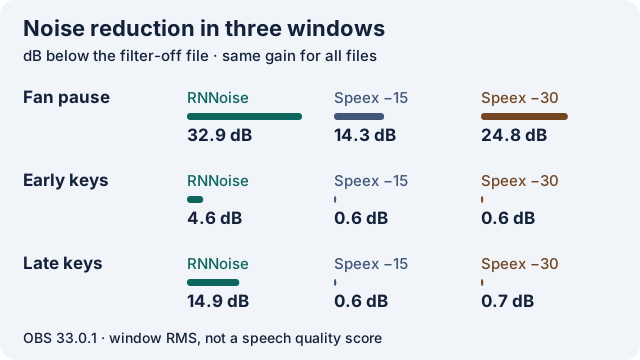
RMS reduction from bypass in dB. Fan pause: RNNoise 32.9, Speex −15 14.3, Speex −30 24.8. Early keyboard group: 4.6, 0.6, 0.6. Late keyboard group: 14.9, 0.6, 0.7.
Keep playback volume fixed. For fan, compare 1.00–2.00 s. For keyboard, compare 2.06–2.37 s and 12.78–13.10 s. Then compare the spoken line.
Fan · filter off
Filter-off reference for the same speech and constructed noise.
Download obs-suppression-fan-off.wav · WAV (48 kHz, 16-bit PCM; mono) · 15 seconds · 1,440,336 bytes
File integrity
SHA-256: 228484de39e723532d60206144bc5192c46b144e472bd3581452e39dc9f98f4a
Fan · RNNoise
Fan-only RMS 32.9 dB below bypass (1.00–2.00 s).
Download obs-suppression-fan-rnnoise.wav · WAV (48 kHz, 16-bit PCM; mono) · 15 seconds · 1,440,336 bytes
File integrity
SHA-256: ea1c9f5f1241b2a17d5a94971da5b09d0da82a5aba2901ef55aa3a4a495e9b19
Fan · Speex −15 dB
Fan-only RMS 14.3 dB below bypass (1.00–2.00 s).
Download obs-suppression-fan-speex-15.wav · WAV (48 kHz, 16-bit PCM; mono) · 15 seconds · 1,440,336 bytes
File integrity
SHA-256: 3dfbf653351c55a8bde2cc96da427ec6d2d1f216793b22b7b92ddd737c348a4e
Fan · Speex −30 dB
Fan-only RMS 24.8 dB below bypass (1.00–2.00 s).
Download obs-suppression-fan-speex-30.wav · WAV (48 kHz, 16-bit PCM; mono) · 15 seconds · 1,440,336 bytes
File integrity
SHA-256: d315e4e750e34df1c91b5e928c109abbec8b2dda054542f22a2026ab410aa9f7
Keyboard · filter off
Filter-off reference for the same speech and constructed noise.
Download obs-suppression-keyboard-off.wav · WAV (48 kHz, 16-bit PCM; mono) · 15 seconds · 1,440,336 bytes
File integrity
SHA-256: a3d0a7fb3d1b2d5bf7e4f57a2a94c7bf7827d71c1b34f941759529a735f06324
Keyboard · RNNoise
Keyboard-only RMS 4.6 and 14.9 dB below bypass (2.06–2.37 s and 12.78–13.10 s).
Download obs-suppression-keyboard-rnnoise.wav · WAV (48 kHz, 16-bit PCM; mono) · 15 seconds · 1,440,336 bytes
File integrity
SHA-256: 1d1cdc0f8ea6356fe0315188e28f8dac0164069a1a9150f9bed0b0e6ad3cdba3
Keyboard · Speex −15 dB
Keyboard-only RMS 0.6 and 0.6 dB below bypass (2.06–2.37 s and 12.78–13.10 s).
Download obs-suppression-keyboard-speex-15.wav · WAV (48 kHz, 16-bit PCM; mono) · 15 seconds · 1,440,336 bytes
File integrity
SHA-256: 568578e373813272f6e7d2cfd96078b395aec06d27a01d426d166403a366f17a
Keyboard · Speex −30 dB
Keyboard-only RMS 0.6 and 0.7 dB below bypass (2.06–2.37 s and 12.78–13.10 s).
Download obs-suppression-keyboard-speex-30.wav · WAV (48 kHz, 16-bit PCM; mono) · 15 seconds · 1,440,336 bytes
File integrity
SHA-256: 4b9cc2f4e63a75d2d59c4abc4b2fe342658a1e639d83b72c797903b380c29115
Generated and measured by StudioSignalLab on November 6, 2026. Shipped files are pinned by hash. Voice: Pangram1.ogg by Aren Elliott, adapted by StudioSignalLab and distributed as CC BY-SA 4.0. The voice was mixed with two constructed noise sources. OBS processed each mix locally. No microphone or room was measured.
What changed in the decoded WAVs
In the fan-only window from 1.00 to 2.00 seconds, RNNoise lowered RMS by 32.9 dB relative to bypass. Speex lowered it by 14.3 dB at −15 and 24.8 dB at −30. For the two isolated click groups, RNNoise lowered RMS by 4.6 and 14.9 dB. The measured changes with Speex were below 0.8 dB in both click windows.
In the 3.00–9.50 second speech-plus-noise window, the largest whole-window RMS change across these outputs was about 0.9 dB. That aggregate can hide changes to individual syllables or timbre. Use the downloads to compare consonants, quiet endings and tone at the same playback volume. The measurements describe level in specific windows. They do not score robotic sound, speech intelligibility or which file a listener should prefer.
The harness fed the official plugin 480 samples at a time at 48 kHz. Each processed file was shifted by the observed 480-sample waveform lag before the common 15-second export. The files received no gain normalization. This alignment is for the comparison and does not measure OBS livestream latency or suggest a sync-offset setting.
Choose the setting on your own mic
- For a steady fan, compare bypass, RNNoise and lighter Speex on the same spoken passage. If you need more reduction, audition a stronger Speex setting before using it.
- For keyboard clicks, compare a pause with keys, then a sentence spoken while typing. If noise remains distracting during words, move the keyboard or change microphone placement and re-record before increasing suppression.
- Keep the version that preserves your quietest useful words and leaves acceptable background. Save a clean separate track where your setup allows it.
Sources and verification
Claims were checked against the following first-party documentation on November 7, 2026. Product capabilities can change; verify current documentation before buying or changing a production system.
- OBS Noise Suppression Filter — scope, methods and controls
- OBS Audio Mixer Guide — input level and monitoring
- OBS Studio 33.0.1 — official macOS build and checksums
- OBS 33.0.1 Noise Suppression implementation
- Pangram1.ogg by Aren Elliott — source voice and transcript
- CC BY-SA 4.0 International — license for the eight adapted WAVs
Frequently asked questions
Why does OBS Noise Suppression make my voice sound robotic?
If the change appears only with the filter on, compare a lighter Speex setting or switch methods. Start from a saved bypassed reference with the same input. If the sound persists with suppression off, check the other filters and the input or playback path.
Should I use RNNoise or Speex for fan noise?
Try both on your microphone. In our controlled mixes, RNNoise reduced the fan-only pause and isolated keyboard bursts more than either tested Speex setting. Check wanted speech before picking a method.
Is −30 dB the best OBS Speex setting?
It is the default in the tested OBS build. If the voice changes audibly, try less reduction such as −15 dB and compare the actual saved recordings. The control does not guarantee a specific measured attenuation.
Can I recover the original voice after recording with suppression?
Look for a saved unprocessed source or separate backup. You cannot turn off the original filter inside a file that already contains only the processed signal.